
You'll need:
- Slash N Forge installed on your device. Check here for the most recent version.
- A file or files imported for editing.
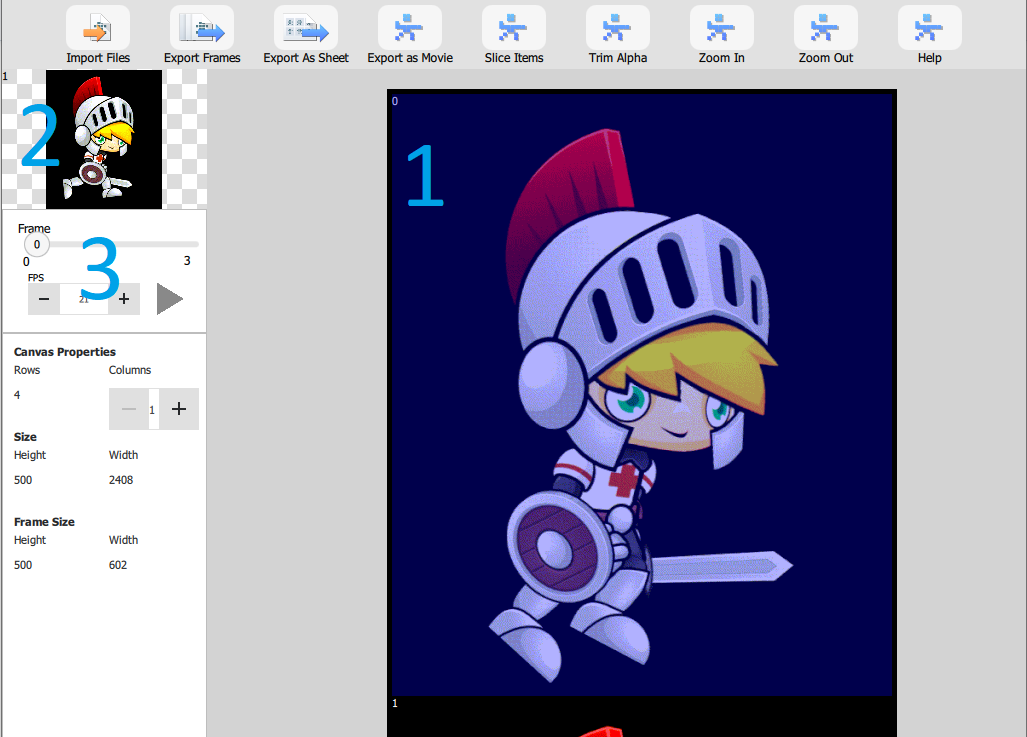
Getting to Know your Canvas
- Imported frames sit in the Canvas (marked "1" below).
- A preview of your animation sits to the left (marked "2" below).
- The Play/Pause button and Frames Per Second (FPS) control are below the preview.
Adjusting Columns and Rows
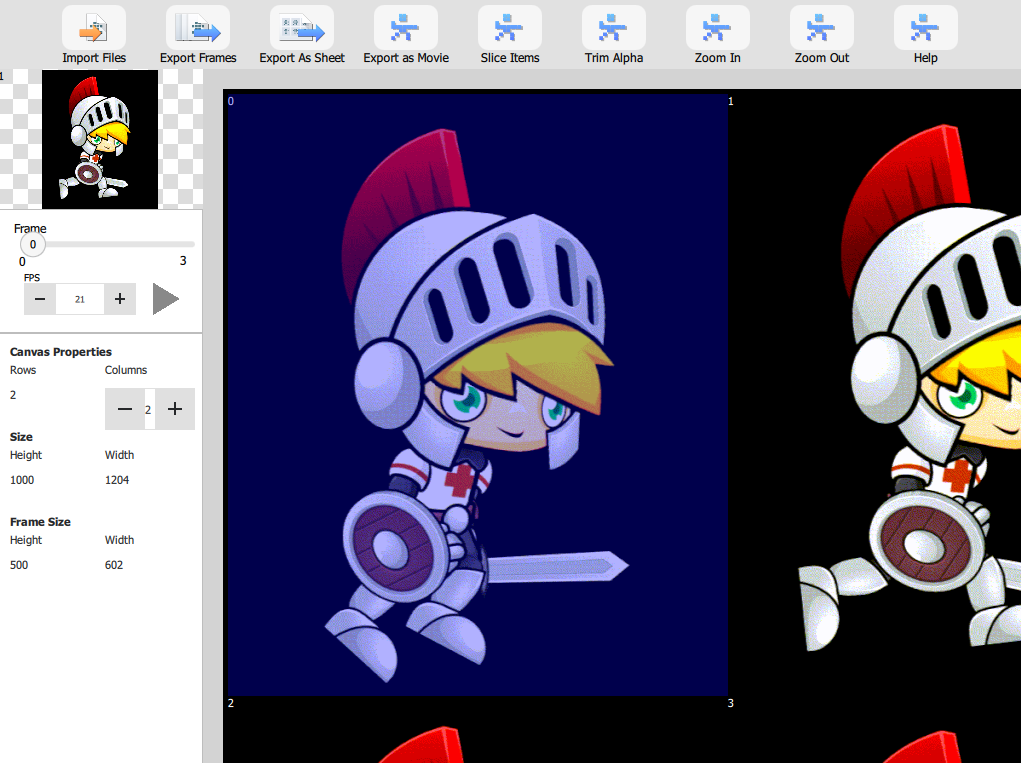
Click + under "Cloumns" to increase the columns by one. Click - to decrease. For other Keyboard Shortcuts, see this document.
Zooming in and out
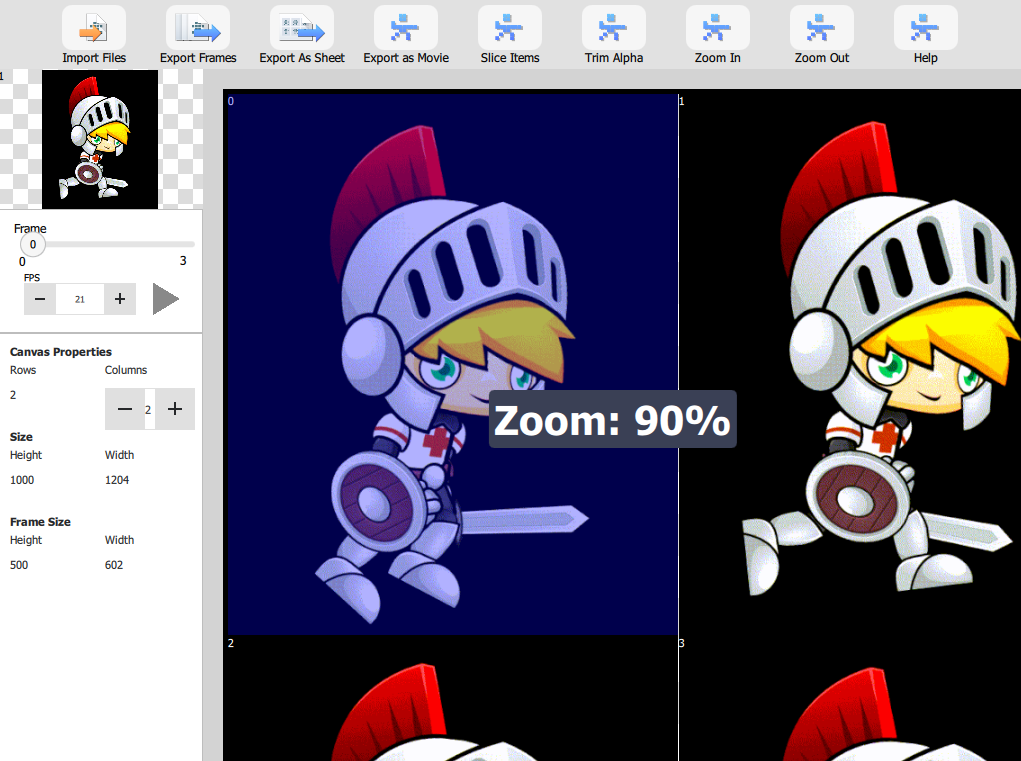
Press "-" on the number row to zoom out or "Shift +" to zoom in.
Reordering Frames
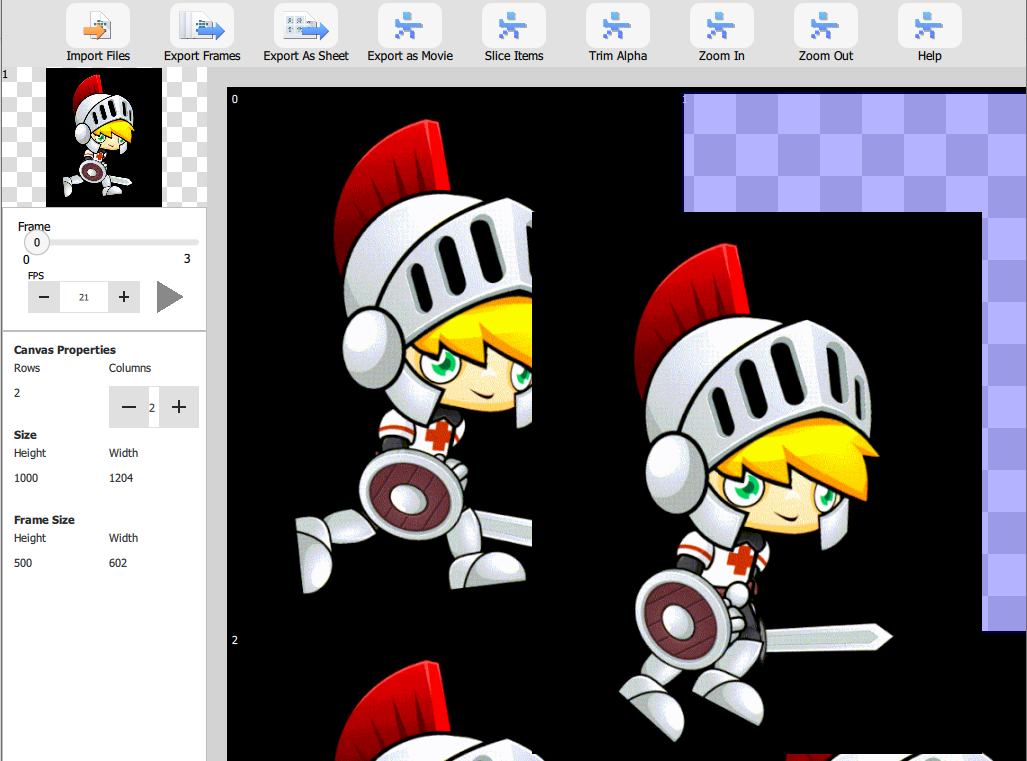
Click and drag frames to rearrange their order.
We hope this helped give you get started moving around the interface. For more information about how to use the product, visit our Help page.